
To abandon a Dimraeth notice board task, open the Deeds tab, select the accepted Deed, and use Abandon at the bottom of its details panel. The control is separate from Turn In. Use it to cancel a task you no longer want to pursue, rather than trying to submit an unfinished objective.
This applies to the Deed interface with an available Abandon control. It does not establish that every story quest is cancellable, that donated items return to your inventory, or that abandoning immediately resets an activity's cooldown. Check those outcomes separately before cancelling a task with valuable materials invested.
Find the accepted Deed and its Abandon control
The board separates Deeds from Bounties. Start with the Deeds tab when cancelling a notice board task. Select the specific entry on the left and read the right-hand panel before pressing anything. A similarly named activity or a different tab can lead you to a different task.
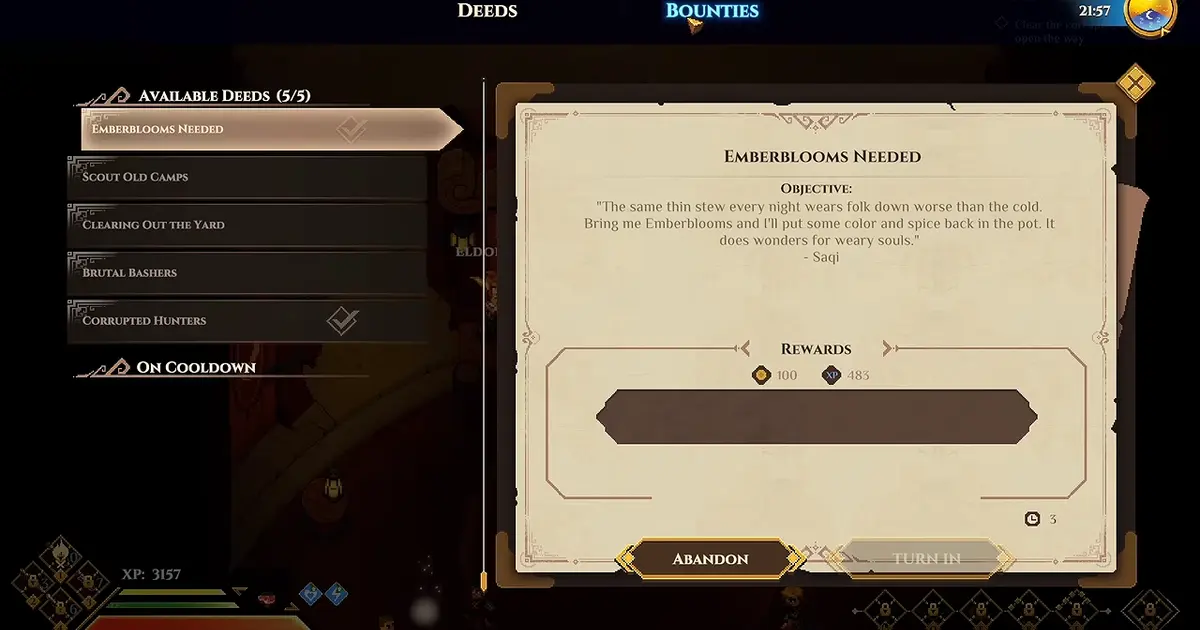
Select the Deed first. Abandon is the lower-left control; Turn In is a separate action.
The selected entry's panel contains its objective and rewards. In the Emberblooms Needed example, Abandon appears at the bottom left while Turn In is disabled. A disabled Turn In button and an available Abandon button describe different actions: the task cannot currently be submitted through that control, but its cancellation control is present.
Follow this sequence:
- Open the board and switch to Deeds.
- Select the accepted task you intend to cancel.
- Read the selected task name and objective to confirm the target.
- Check whether Abandon is available at the bottom of its details panel.
- Select Abandon. If your interface presents an additional confirmation, read it before accepting.
- Reopen or inspect the list and quest log to see whether the task remains active.
The final check matters. Clicking a control is an action; seeing that the correct task is no longer active is the outcome you want. If the entry remains, avoid cancelling other tasks while trying to diagnose the first one.
Abandon and Turn In serve different purposes
Use Turn In when you want the completion and rewards of the selected task and its requirements are satisfied. Use Abandon when you intend to stop pursuing it. Switching between those controls does not turn an incomplete objective into a completed one.
| Your goal | Control or next action |
|---|---|
| Complete the selected task and receive its completion result | Satisfy its objective, then check Turn In |
| Stop pursuing the selected Deed | Check Abandon in that Deed's panel |
| Diagnose a task that looks complete but will not submit | Inspect objective and submission state before cancelling |
| Confirm cancellation worked | Check the selected task's list and log state afterward |
Do not abandon a task solely because its Turn In button is grey. Read the objective first. You may still need an item, a required amount, or a submission action. The board view helps you establish which task and which state you are actually dealing with.
If the problem is specifically a Food Scraps Request that will not complete, use the Food Scraps submission checks. Cancellation is a separate decision from identifying why that donation task remains unfinished.
A quest-log cancellation can be a separate route
Some tasks also expose cancellation through the quest log. A Cull the Rippers task can be abandoned there when its objective cannot be found. That example establishes that quest-log cancellation exists for that task; it does not establish the same cancellation controls for every quest.
When the board's task and the log's task have the same name, compare their objectives before acting. If the log exposes a cancellation option, read the selected entry carefully. Avoid assuming that a story quest, a Deed and a Bounty share identical consequences merely because all three appear in your activity tracking.
Check material and repeat consequences separately
Before abandoning a collection task, note what you have already supplied and what remains in your inventory. Do not assume that partially submitted materials are refunded. An Abandon button establishes that the interface offers cancellation; it does not itself promise a refund policy.
Similarly, check the board after cancellation instead of assuming that the activity will instantly become available again. Availability, accepted state and cooldown are separate questions. If an entry appears in an on-cooldown section, record that state rather than treating cancellation as a guaranteed way to reset it.
Keep the distinction between cancelling and replaying clear. For repeatable boss activities and the Bounty interface, use the boss replay guide. That page owns choosing another run; this page owns identifying and cancelling the task already selected.
When the expected cancellation control is missing
First confirm that you are looking at the accepted task's details, not a reward tooltip, another activity tab, or an unselected entry. Then check the quest log for that same task. If neither interface offers cancellation, do not apply a different game's abandon shortcut or assume that repeated clicks will force the option to appear.
Capture the task name, objective, selected tab and visible controls. Those details distinguish a missing cancellation option from a failure to turn in a task or a mismatch between two similarly named activities. They also give you a clear state to compare after changing the selection or reopening the board.