
Start by updating Dimraeth, separating a process crash from a host freeze or a teleport black screen, and preserving your existing character and world before testing. Release 0.107.7822, published on October 5, addresses several multiplayer freezes and adds safeguards for Vanishing Strike teleport failures. Those changes do not establish one universal fix for every crash, and they do not prove that a missing character has been restored.
A useful test changes one condition and has a clear result. Record the installed build, the action immediately before the failure, whether you hosted the world, and whether other players experienced the same event. Keep that information while working through the relevant branch below. Repeatedly reinstalling, deleting folders, or loading a valued save into different modifications makes the original problem harder to identify.
Identify the failure before changing settings
The word crashing can describe several different outcomes. Choose the row matching what you actually see, rather than applying every suggestion in a long list.
| Observed outcome | First distinction to make | Useful information to retain |
|---|---|---|
| The game closes and returns you to the desktop | A process exit rather than an in-game pause | Last action, error text, build, solo or co-op |
| The host pauses and every connected player stops | A shared host or world interruption | Host activity, world size, whether the host tabbed out |
| The game remains open but the screen becomes black after teleporting | A teleport or position failure rather than a confirmed exit | Ability or destination, visible HUD, connection state |
| A guest cannot enter a very large base or world | A joining or loading failure | Which world loads, host build, progress before the stall |
| A character or world is absent after restarting | A persistence problem requiring a separate recovery path | Account, machine, exact missing entry, last successful session |
Do not infer a damaged save from a black screen alone. Similarly, a healthy main menu does not prove the same world can load successfully. The distinction determines what you test and which details belong in a bug report.
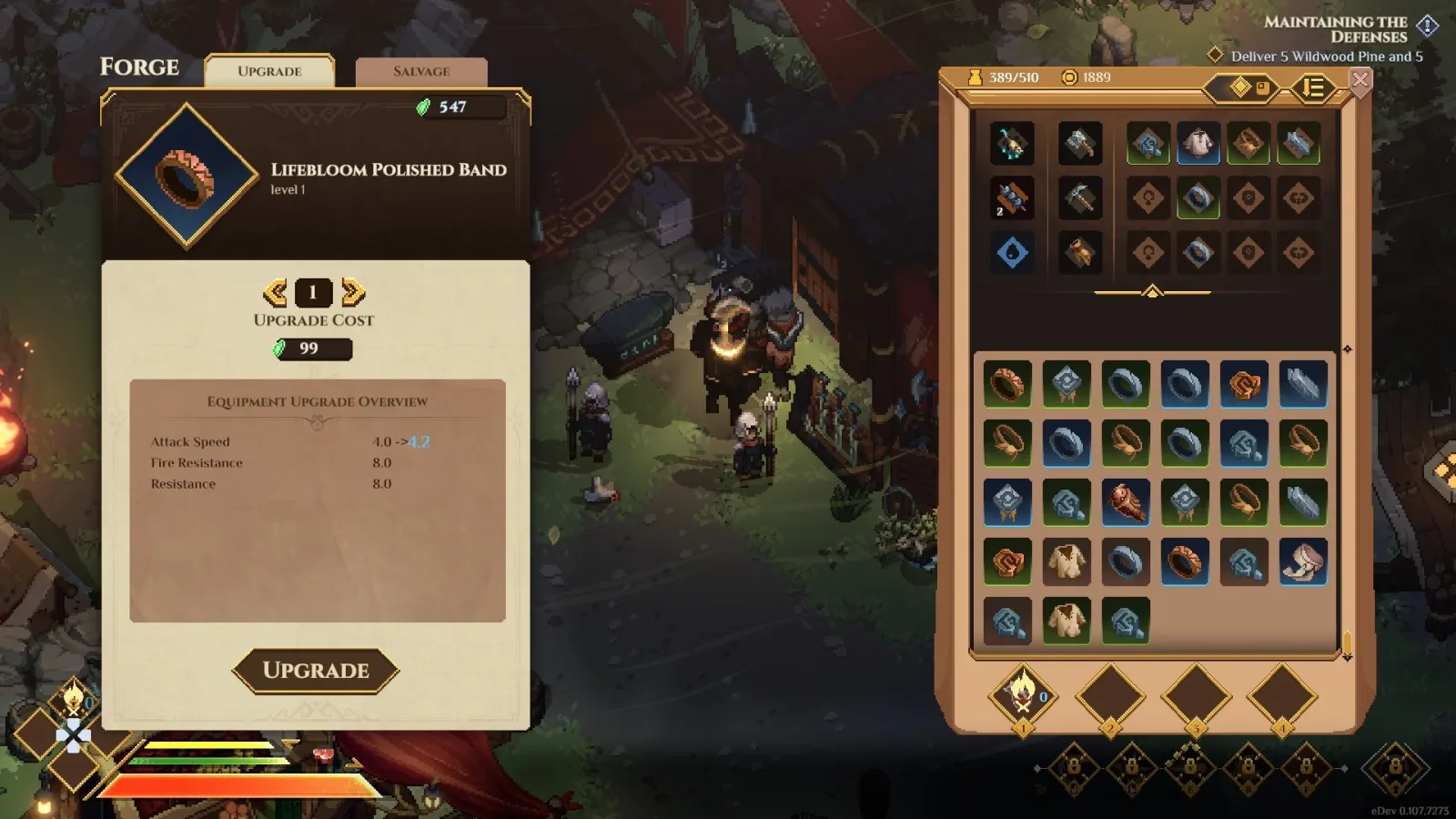
An active game interface with an inventory and HUD. This reference does not demonstrate a crash or prove a fix.
Check the installed build and preserve the original state
Version 0.107.7822 was released on October 5. Your installation may show a later build; record the version you are actually running before comparing results.
Use this preparation sequence before deliberately reproducing a failure:
- Note your current build and whether Steam has a pending update.
- Record the character name and the world you last entered successfully.
- Identify whether the affected session was solo, hosted by you, or joined as a guest.
- Preserve the relevant existing character and world data using a method you can verify on your machine.
- Keep any existing backup separate from the files used for testing. If you cannot identify the relevant save files, avoid deleting or replacing guessed folders.
- Restart into the updated base game before testing the same action once more.
Steam lists Cloud support for Dimraeth, but that feature is not a promise that every earlier state is recoverable. Keep the distinction between an existing local backup, an account's synchronized files, and a successful load inside the game. Each is a different observation.
For a missing entry rather than a repeatable crash, use the missing-character guide. It keeps recovery decisions separate from performance and teleport tests.
Teleport black screens and Vanishing Strike
October 5's patch adds safety changes for the Vanishing Strike teleport-to-nowhere problem. The developer also states that the reported issue had not been reproduced internally. Treat the patch as a targeted improvement to try, not a guarantee that every black screen is fixed.
Record the trigger precisely. Did you activate Vanishing Strike, use a world travel point, or move to Sanctum? These actions are not interchangeable. A September 18 player report described frequent crashes when teleporting to Sanctum and an abnormal position after reloading. That report establishes a symptom somebody encountered, but it does not prove that every travel failure has the same cause as Vanishing Strike.
After updating, use a controlled session rather than an important boss attempt. If possible, reproduce only the known action that caused the failure. Note whether the game closes, whether the HUD remains visible, and whether a connected player can still see or interact with your character. Those details help distinguish position, rendering, and connection symptoms without pretending to identify the underlying code defect.
If the black screen persists, avoid immediately repeating the ability several times. Repeated inputs can obscure which action produced the original state. Record the time and relevant location, then preserve the session details before restarting normally.
Host freezes, tabbing out and large worlds
The October 5 notes separate several multiplayer improvements. They address the host freezing connected players when tabbing out, joining very large bases, and the saving workload of huge worlds. These are distinct changes, so keep your test specific.
If everybody stops when the host switches away from the game, ask the host to note that action and update first. A guest changing graphics settings is not a useful first experiment for a pause observed across the whole group at the same moment. The shared timing is more informative than somebody's guess that the frame rate was low.
For a large-world problem, compare the affected world with a different test world while keeping the same character and game build when practical. A smaller world loading successfully is useful evidence about the circumstances of the failure. It does not prove that buildings must be dismantled, that a particular object is corrupt, or that the player's hardware meets every possible world-size requirement.
Do not tear down a developed Sanctum as a diagnostic shortcut. First record whether the problem appears while joining, during a save, or after placing an object. The patch specifically reduces world-save workload and the host cost of ground decor in huge bases. Neither statement supplies a reliable universal building limit.
When the host can load a world but a guest cannot, retain both sides of the observation. Record the guest's progress before the stall, whether the host sees the guest arrive, and whether a smaller session behaves differently. Keep the party's versions aligned before comparing further results.
Joining failures and invisible enemies after a reset
Some apparent freezes are state-synchronization problems. The October 5 notes address monsters remaining invisible to clients after a reset and revived monsters freezing beside a respawning player. A player may still be connected even when the scene does not match the host's view.
For this branch, compare what the host and guest actually see. Can the host see the monster that is absent for the guest? Does the problem begin immediately after a death or reset? Does the guest still receive damage or see a health bar? Write down those observations rather than assuming the enemy is intentionally invisible.
Update before retesting. Use the same activity and a limited number of attempts, so the comparison has a clear before-and-after condition. If the problem persists on the updated build, include the reset sequence in your report: who died, who hosted, and what changed when the scene returned.
For ordinary goblin population resets rather than a client display failure, use the goblin-cave respawn guide. The Hoard King bounty has a documented reset behavior; that is a different question from whether a client renders the respawned population correctly.
Isolate unofficial changes without risking your main save
If the problem began after a mod or third-party tool was introduced, record exactly what changed. A timing connection is a useful lead, but it is not proof that the tool caused the failure. The purpose of a clean comparison is to test that lead.
Do not add another mod while troubleshooting the first one. Keep a record of the modifications already installed, their stated compatible versions, and the date the game last loaded successfully. Return to a documented base-game state through the tool's own removal instructions, while protecting the original files and saves.
The Dimraeth Mods guide owns installation and removal details. This page only uses the modification history as a diagnostic branch. No unofficial patch or save-editing shortcut is established as a universal cure.
Hardware checks that avoid unsupported promises
Dimraeth's current Steam requirements list Windows, memory, graphics, DirectX and storage requirements. The listed graphics table contains a notable inconsistency between minimum and recommended GPU entries. Do not turn that table into a confident ranking or claim that one older integrated GPU is supported.
Compare your machine with the current storefront information rather than an old launch article. Record the actual GPU and available memory when reporting a startup or loading failure. A device description such as gaming laptop is not enough to distinguish configurations.
Free space and supported operating-system requirements are worth checking before deeper experiments. Meeting a listed minimum still does not guarantee a particular frame rate, eliminate every software conflict, or prove that an unusually large co-op world will behave identically to a small solo session.
The download and installation guide covers identifying the correct Steam edition and preparing an installation. Use this page for the failure that remains after installation, rather than repeatedly paying for, downloading, or reinstalling copies from unverified mirrors.
Build a bug report the developer can act on
The official FAQ directs bug reports to the game's Discord. A useful report needs the failure sequence and the limits of your tests, not a long list of assumed causes.
Include the following information when it is available:
- Installed Dimraeth build and the date of the affected session.
- Whether you were playing solo, hosting, or joining another player.
- Character and world context needed to reproduce the event, without sharing unrelated personal information.
- The action immediately before the failure, including the exact spell or travel destination when relevant.
- Whether the process closed, the screen became black, or the whole party paused.
- Any visible error message copied exactly rather than paraphrased.
- Whether the updated unmodified game behaved differently.
- Screenshots or a short recording showing the transition into the failure.
If a step cannot be reproduced safely, say so. A report with one clearly described occurrence can still be useful. Do not destroy progress trying to create a more dramatic demonstration.
The Discord and community guide explains how to choose the bug-report path and retain useful session details. A gameplay question about crafting, equipment or a missing quest prerequisite belongs on its corresponding guide unless there is a reproducible failure of the game system itself.
Confirm the result and stop changing variables
After a successful test, return to the original failure condition once in a controlled session. Check the part that mattered: the same travel action, the same joining sequence, or the same world-loading point. Then confirm that the character and world remain available after a normal restart.
Keep a short record of the working build and changed condition. If the problem returns after another update, that record establishes what actually worked and helps avoid repeating destructive experiments. Once the relevant test passes, stop adding speculative changes; preserve the stable configuration and continue playing.